
A red prompt on production
Most wrong-server mistakes happen because two terminals look the same. The prompt is what you read just before pressing Return, so change it there. Add this at the end of ~/.bashrc on the server. It has to go at the end, because the distribution's .bashrc sets PS1 earlier and would overwrite it:
PS1='\[\e[1;37;41m\] PRODUCTION \[\e[0m\] \u@\h:\w\$ 'This shows white on red PRODUCTION, then the normal user, host and folder. The \[ and \] tell bash that the color codes take no width, so long commands still wrap correctly.
Add the same line to /root/.bashrc: in our test sudo -i showed the red label only because that file had it too. For staging, use yellow with \e[1;30;43m. It works only for interactive bash, so other shells need their own setting.
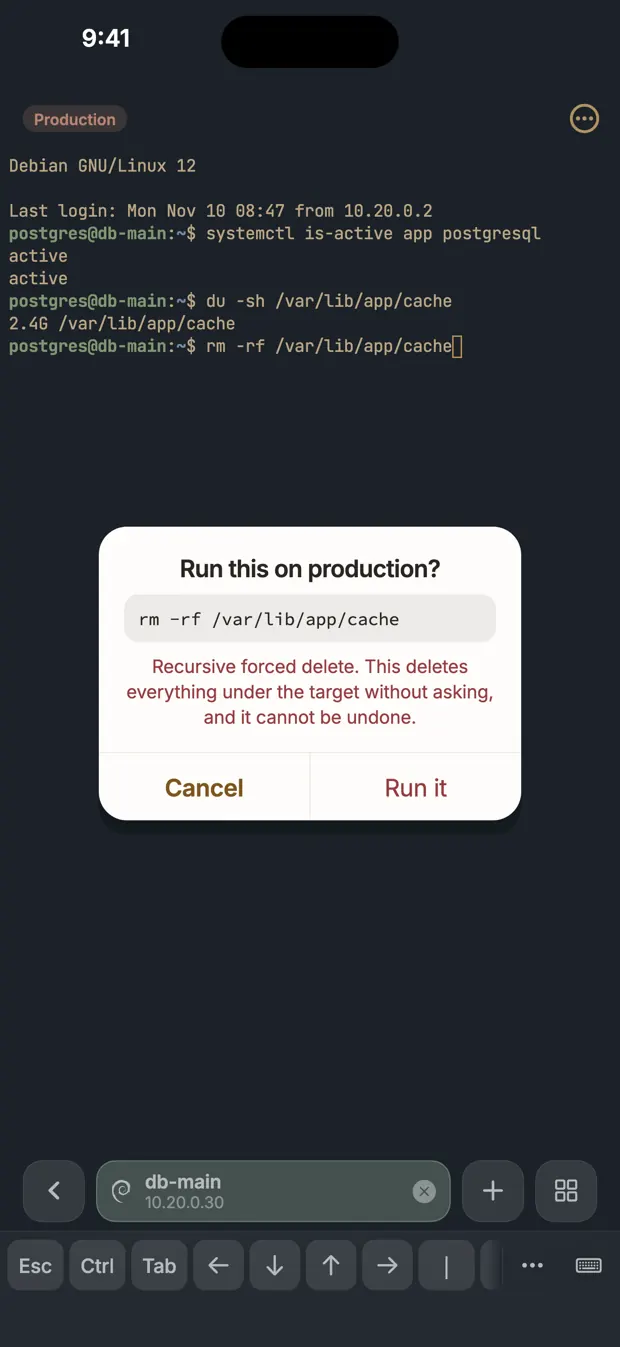
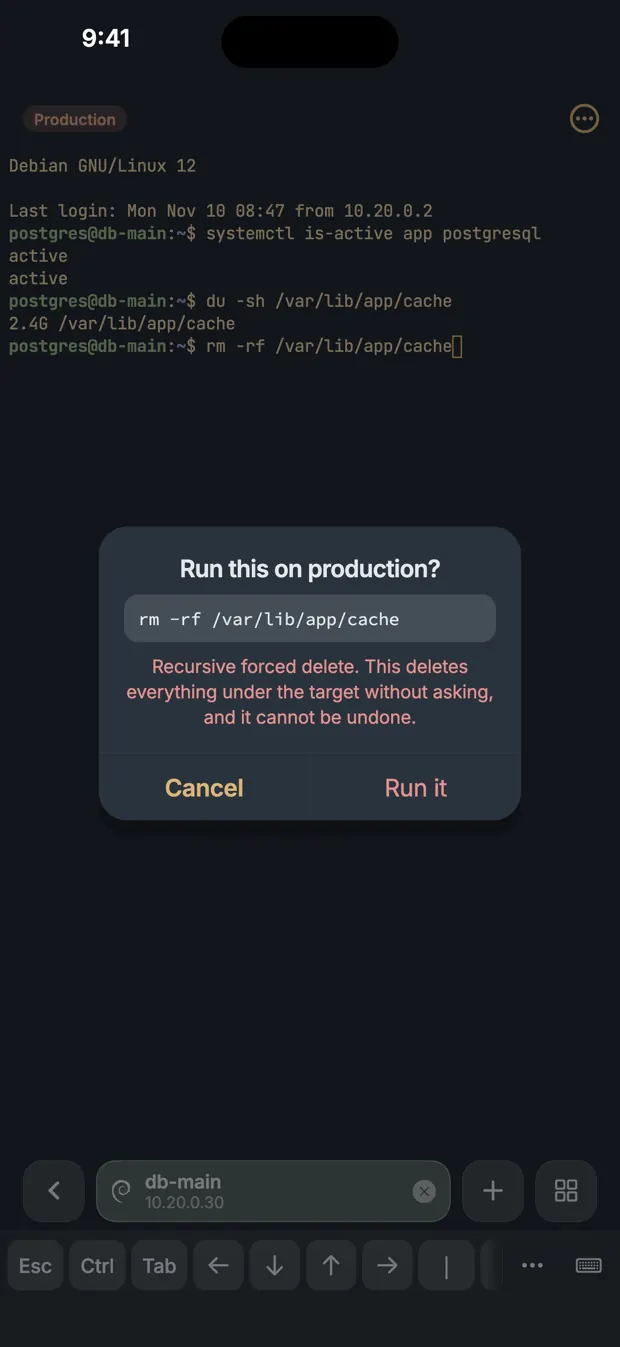
Color the tmux bar and the terminal
If you use tmux on the server, color its status bar, in ~/.tmux.conf there:
set -g status-style bg=red,fg=white,bold
set -g status-left " PRODUCTION "
Check that it loaded with tmux show -g status-style.
On your own machine, most terminal apps can open a host in a separate profile. Give production a window with a dark red background. You can also let your SSH config set the color, in terminals that support the OSC 11 sequence:
Host prod-*
    PermitLocalCommand yes
    LocalCommand printf '\033]11;#400000\007'
The color does not change back by itself when you log out, and support varies, so try it in your terminal first.
With many servers, clear names and groups help as much as colors: see how to manage many SSH servers.
Deleting files safely
GNU rm already refuses the worst case:
$ rm -rf /
rm: it is dangerous to operate recursively on '/'
rm: use --no-preserve-root to override this failsafe
This protects only the literal /. In rm -rf /* the shell expands the star first, so rm receives /bin, /etc and the rest, and the check does not apply. A stray space in rm -rf /var/app /* does this by accident. These habits help more:
- Look before you delete. Put
echoin front to see what a glob expands to:echo rm -rf /tmp/app/*. Then remove theecho. - Join with
&&, not;. Withcd /var/app/tmp && rm -rf ./*, a failedcdstops there. With;the delete runs in whatever folder you are in. - Guard variables in scripts.
rm -rf "${DIR:?}/"stops with an error whenDIRis empty, where a plain"$DIR/"would become/.set -uat the top of a script also stops on unset variables. - Move first, delete later.
mvto a holding folder can be undone.rmcannot. - Use
rm -I. It asks once before removing more than three files or removing recursively. Answering nothing removes nothing, as in our test. - Use
--preserve-root=all. It also refuses a folder on a different filesystem from its parent, so it would refuse a mounted disk:rm: skipping '/dev/shm', since it's on a different device.
The last two can go in an alias on the server, alias rm='rm -I --preserve-root=all'. Aliases apply only to interactive shells, not to scripts or to sudo rm, and these flags are GNU only.
Dry run first
| Command | Preview |
|---|---|
| rsync | rsync -an --delete --itemize-changes src/ dst/ |
| find | find . -name '*.tmp' -print first, then replace -print with -delete |
| git clean | git clean -n |
| apt-get | apt-get -s remove package |
With SQL, run BEGIN; first, then the statement, check the row count, and finish with COMMIT; or ROLLBACK;. This does not cover statements your database commits by itself. MySQL does that with table changes, for example.
Pasting several lines
In a terminal a line break in pasted text acts like Return, so a paste can run commands before you read them. Bracketed paste fixes this. The terminal marks the pasted text, and the shell inserts it without running anything. We pasted two echo lines into bash through tmux:
- With it on, both lines sat at the prompt and nothing ran until Return.
- With it off, the first line ran as soon as it was pasted.
It is on by default in current bash. Check with this command in an interactive shell:
bind -v | grep bracketed-pasteIf it says off, add set enable-bracketed-paste on to ~/.inputrc. It only helps where the program asks for it. Pasting into a program that does not, or into an old shell, still runs line by line.
What these cannot do
A prompt color only helps if you look at it. It does not protect a script, a cron job, or a command run with ssh server 'command', which never shows a prompt. Aliases can be bypassed, and none of this stops a mistake in the arguments of a command you meant to run.
So keep the larger safeguards: tested backups, separate accounts and keys for production, and the least sudo each person needs. See sudo over SSH for narrow rules.
Questions
How do I make the bash prompt red on a production server?
Set PS1 with a red background color code at the end of ~/.bashrc on that server, and in /root/.bashrc for sudo -i. Put it at the end so the distribution's own PS1 does not override it.
Does rm -rf / still work on Linux?
GNU rm refuses the literal / unless you add --no-preserve-root. It does not protect rm -rf /*, because the shell expands the star into every top level folder first.
How can I see what a command will delete before running it?
Put echo in front to see what a glob expands to, or use the dry run option: rsync -n, git clean -n, or find with -print before -delete.
Sources
- GNU coreutils manual: rm and treating / specially
- Bash manual: Readline init file syntax
- tmux(1), OpenBSD manual
- ssh_config(5), OpenBSD manual