
Files app or a separate app
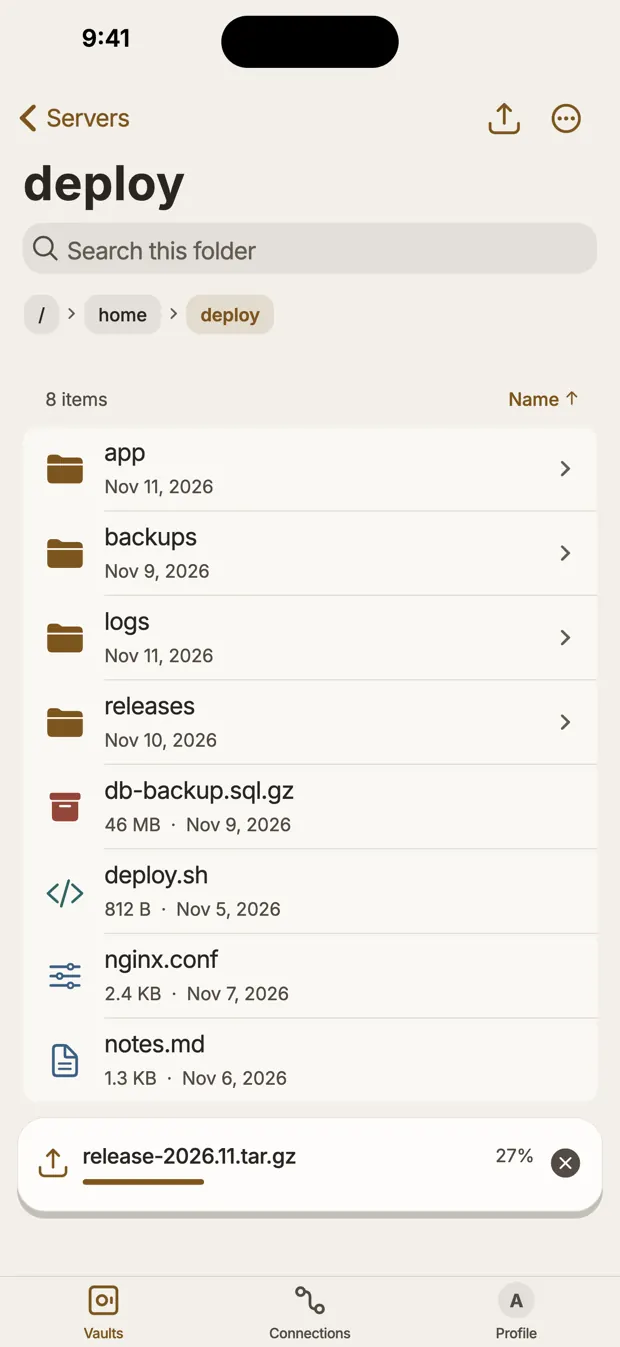
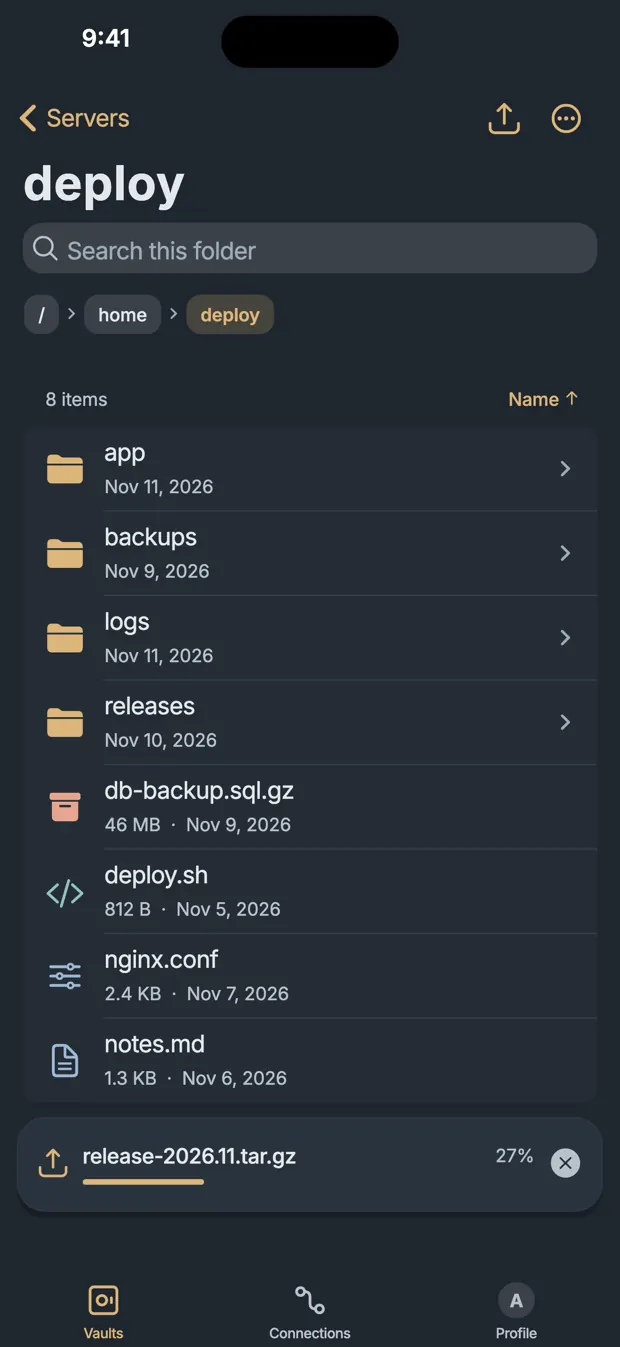
The Files app has a Connect to Server command, but it is for file sharing servers such as SMB shares. It does not offer SFTP, so to reach a server over SSH you need an SFTP client app.
Apps differ in how they meet the Files app. Some add their own location, and you can then browse the server from inside Files. Others keep downloads in a folder of their own, which appears under On My iPhone. Check which one you are getting, since it decides how you open a file in other apps.
What to look for in an app
- Key login, with Ed25519 keys and a passphrase.
- Host key checks, with a stop when the key changes.
- Uploads from Photos and Files, since those are where phone files live.
- Background behavior. iOS can suspend an app that leaves the screen, so a large transfer may stop. Find out what the app does, and test with a large file.
- Resume, so a failed upload on a weak connection does not have to start over.
- Where it stores secrets, and whether it has an app lock.
What SFTP needs on the server
SFTP runs inside SSH, so if SSH works you need only one more thing, the sftp subsystem. Check it:
sudo sshd -T | grep -i '^subsystem'On Debian this prints subsystem sftp /usr/lib/openssh/sftp-server. If nothing appears, SFTP clients fail like this:
subsystem request failed on channel 0
Connection closed
To fix it, add Subsystem sftp internal-sftp to sshd_config and reload sshd. To reach a private server from a phone, see SSH from an iPhone. It is the same network path.
A user who can only use SFTP in one folder
Your phone does not need a shell on the server to upload photos. A dedicated user limits the damage if the phone or its key is lost. Create the group, the user and the folders:
sudo groupadd sftponly
sudo useradd -g sftponly -s /usr/sbin/nologin -d /srv/sftp/sftpuser -M sftpuser
sudo mkdir -p /srv/sftp/sftpuser/uploads /srv/sftp/sftpuser/.ssh
sudo chown root:root /srv/sftp /srv/sftp/sftpuser
sudo chmod 755 /srv/sftp /srv/sftp/sftpuser
sudo chown sftpuser:sftponly /srv/sftp/sftpuser/uploads /srv/sftp/sftpuser/.ssh
sudo chmod 700 /srv/sftp/sftpuser/.ssh
Put the phone's public key in place, from a file you copied to the server:
sudo install -m 600 -o sftpuser -g sftponly iphone.pub /srv/sftp/sftpuser/.ssh/authorized_keysNo key pair yet? See how to generate an Ed25519 SSH key.
Then create /etc/ssh/sshd_config.d/20-sftp.conf:
Match Group sftponly
    ChrootDirectory %h
    ForceCommand internal-sftp
    AllowTcpForwarding no
    AllowAgentForwarding no
    X11Forwarding no
    PermitTunnel no
    PermitTTY no
If your system has no sshd_config.d, put the block at the very end of sshd_config, because a Match block there runs on to the end of the file. Check it, then reload:
sudo sshd -t
sudo sshd -T -C user=sftpuser,host=example.com,addr=203.0.113.10 | grep -iE '^(chrootdirectory|forcecommand)'
sudo systemctl reload ssh
The second command must print forcecommand internal-sftp and chrootdirectory %h, with capitals such as ForceCommand on OpenSSH 10.4 and later. Run it again with another user name to check that others still show none. On Fedora and RHEL the service is called sshd.
The ownership rule
This is what trips nearly everybody. Every folder in the chroot path, up to and including the chroot itself, must be owned by root and not writable by group or others. So the user cannot write directly in their own top folder, and that is why uploads exists.
When we gave the top folder to the user, the login failed with only this on the client:
Connection to server closed by remote host.
Connection closed
The real reason is in the server log:
bad ownership or modes for chroot directory "/srv/sftp/sftpuser"Test it from a computer first
$ sftp sftpuser@server
sftp> pwd
Remote working directory: /
sftp> cd uploads
sftp> put photo.jpg
sftp> cd /
sftp> put photo.jpg
dest open "/photo.jpg": Permission denied
sftp> get /etc/passwd
File "/etc/passwd" not found.
A shell login must fail, with This service allows sftp connections only. In the same test, scp into /uploads worked, because it uses SFTP, and rsync failed, because it needs to run a program on the server. See scp, SFTP or rsync.
One limit: the user owns .ssh inside the chroot, so someone with that key can read or change authorized_keys. This cannot give them a shell or access outside the folder, but they could add another key for this account. Set AuthorizedKeysFile in the Match block to a path outside the chroot if that matters to you.
Questions
Can the iPhone Files app connect to an SFTP server?
No. Connect to Server in the Files app is for file sharing servers such as SMB, not SFTP. To reach a server over SSH, you need an SFTP client app.
Which port does SFTP use?
The SSH port, 22 unless the server is set otherwise, because SFTP runs inside an SSH connection.
Why does an sftp-only user get Connection closed right after login?
Usually the chroot folders have the wrong owner. Every folder up to the chroot must be owned by root and not writable by others, and the server log says bad ownership or modes for chroot directory.
Sources
- sshd_config(5): ChrootDirectory, ForceCommand, Subsystem, OpenBSD manual
- sftp(1), OpenBSD manual
- Connect servers or external devices with Files on iPhone, Apple Support